Once you create the cross account destinations using NerdGraph, you can view the Destinations and use them to receive notifications by configuring the workflows.
View destinations on the Destinations page
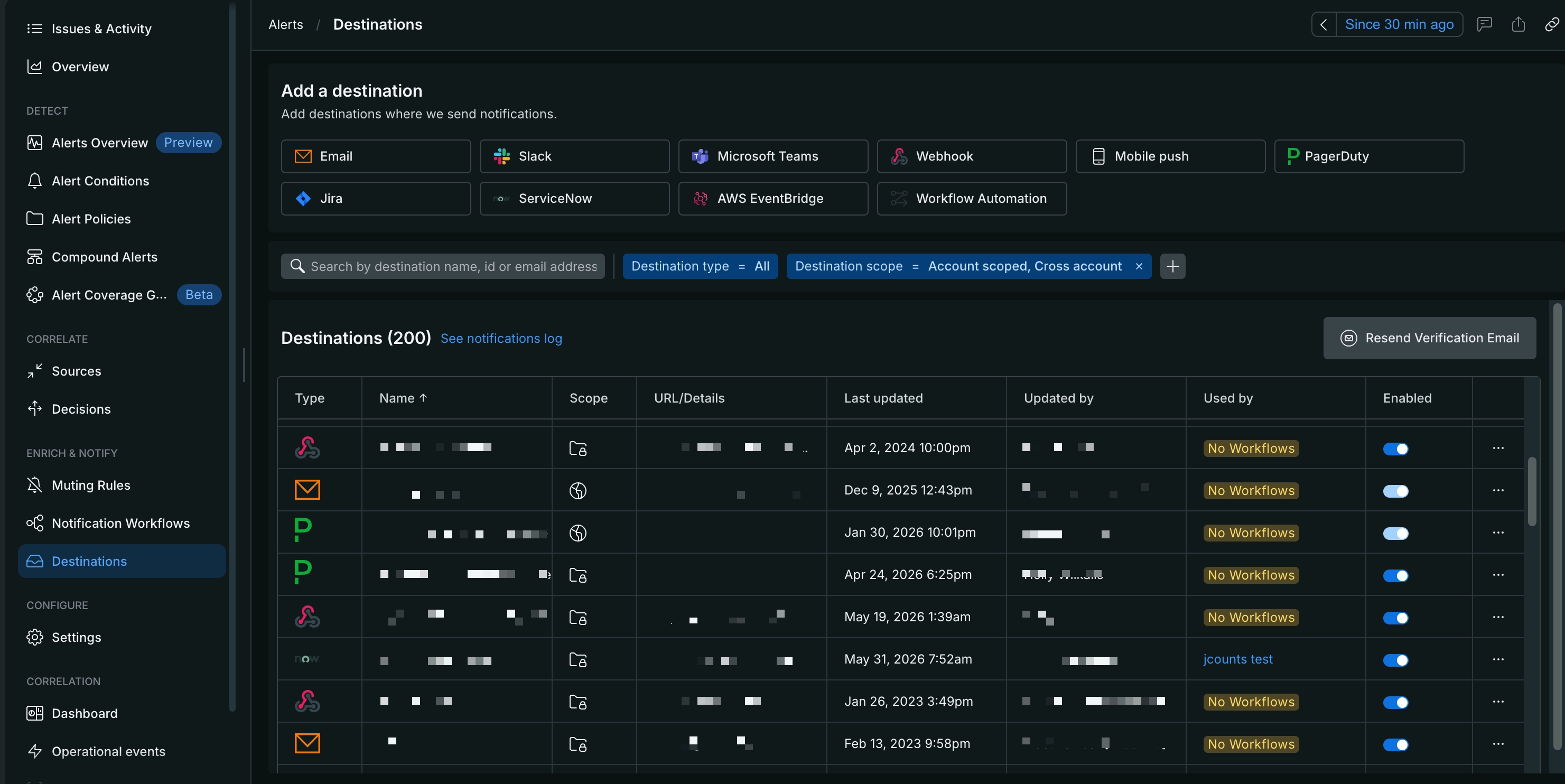
- Go to one.newrelic.com > Alerts > Destinations.
- Use the Destination scope filter to narrow the list:
- Account scope: destinations available only in the current account
- Cross account scope: destinations available across every account in your organization
- Identify the scope by its icon:
- An account icon marks an account-scope destination. Point to the icon to see the account name and ID.
- An organization icon marks a cross account destination. Point to the icon to see a note that every account in your organization can use it.
Important
You can edit, delete, or test only account-scope destinations from this page. For cross account destinations, the Edit and Delete options don't work. To update, delete, or test a cross account destination, use the NerdGraph mutations.
Add a destination to a workflow channel
A workflow sends notifications through one or more channels, and each channel uses a destination (the underlying integration, such as a Slack workspace or email address). When you add a channel to a workflow, both account-scope and cross account destinations appear together in the destination list, for any destination type—email, Slack, Jira, ServiceNow, Webhook, PagerDuty, and so on.
Follow these steps to add a destination to a workflow:
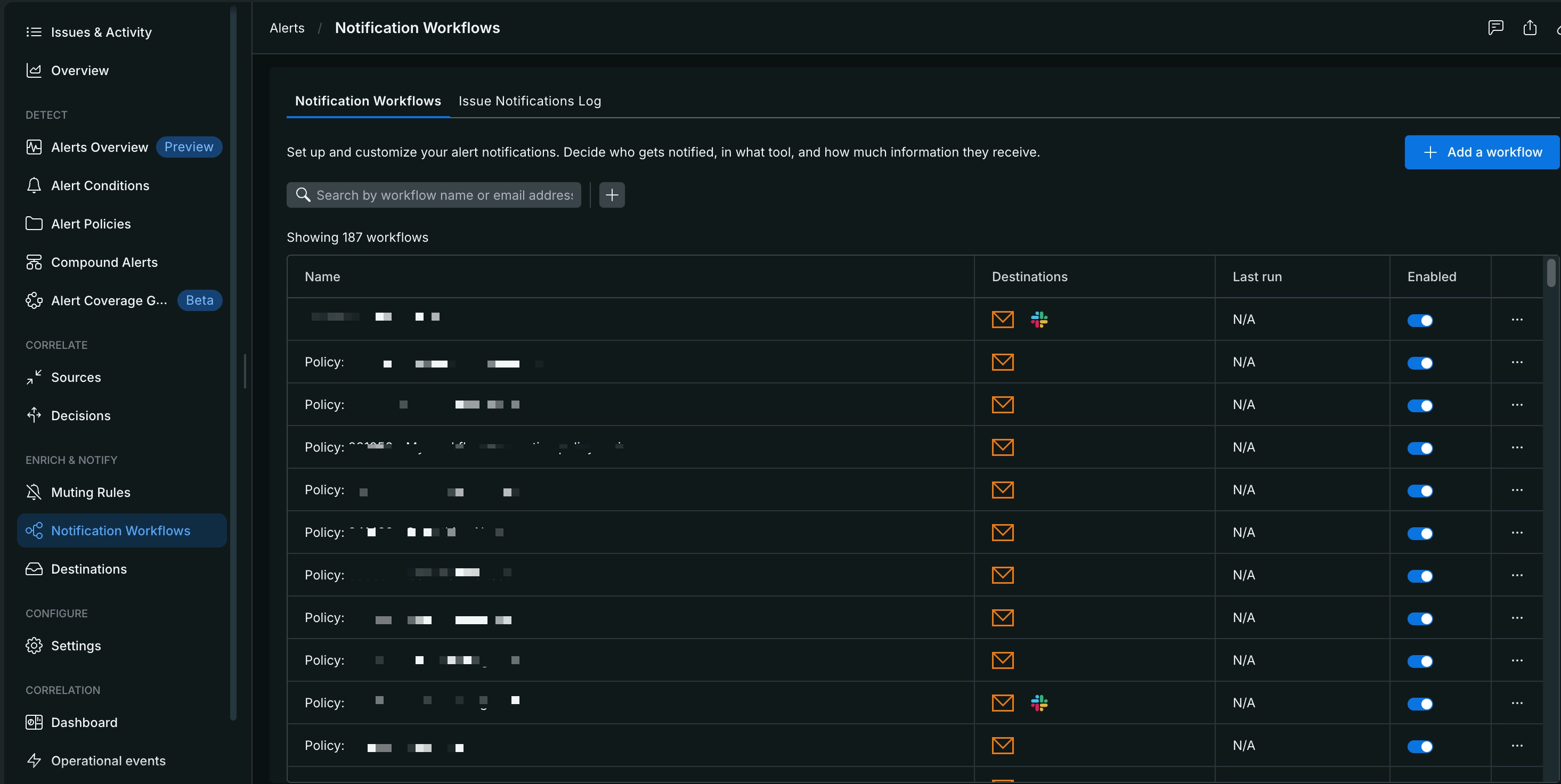
Go to one.newrelic.com > Alerts > Notification Workflows and select a workflow from the list or create a workflow by clicking + Add a workflow.
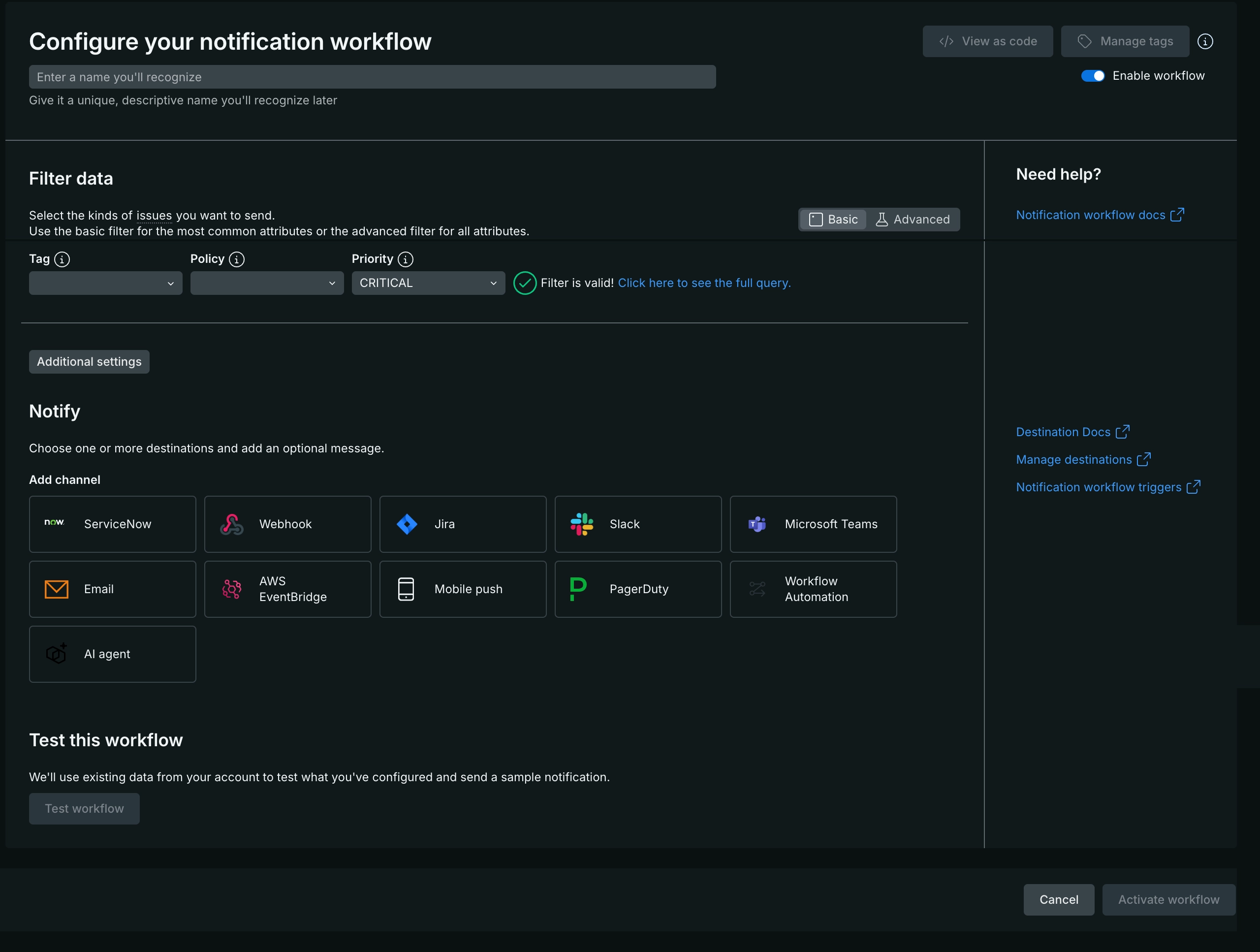
Enter relevant details in Configure your notification workflow page.
Conseil
In the Notify section, when you add a channel, you can select either a cross account destination or an account-scope destination. Choose the destination based on who you want to notify: a cross account destination to notify the same channel from any account in the current organization, or an account-scope destination to notify a channel tied to the current account only.
Click Activate workflow to send notifications to the configured channels.