Once you've created a chart, you can customize the appearance of it to best present the data. You can share a chart in different formats and add a chart to a new or existing dashboard.
Change the appearance of your chart
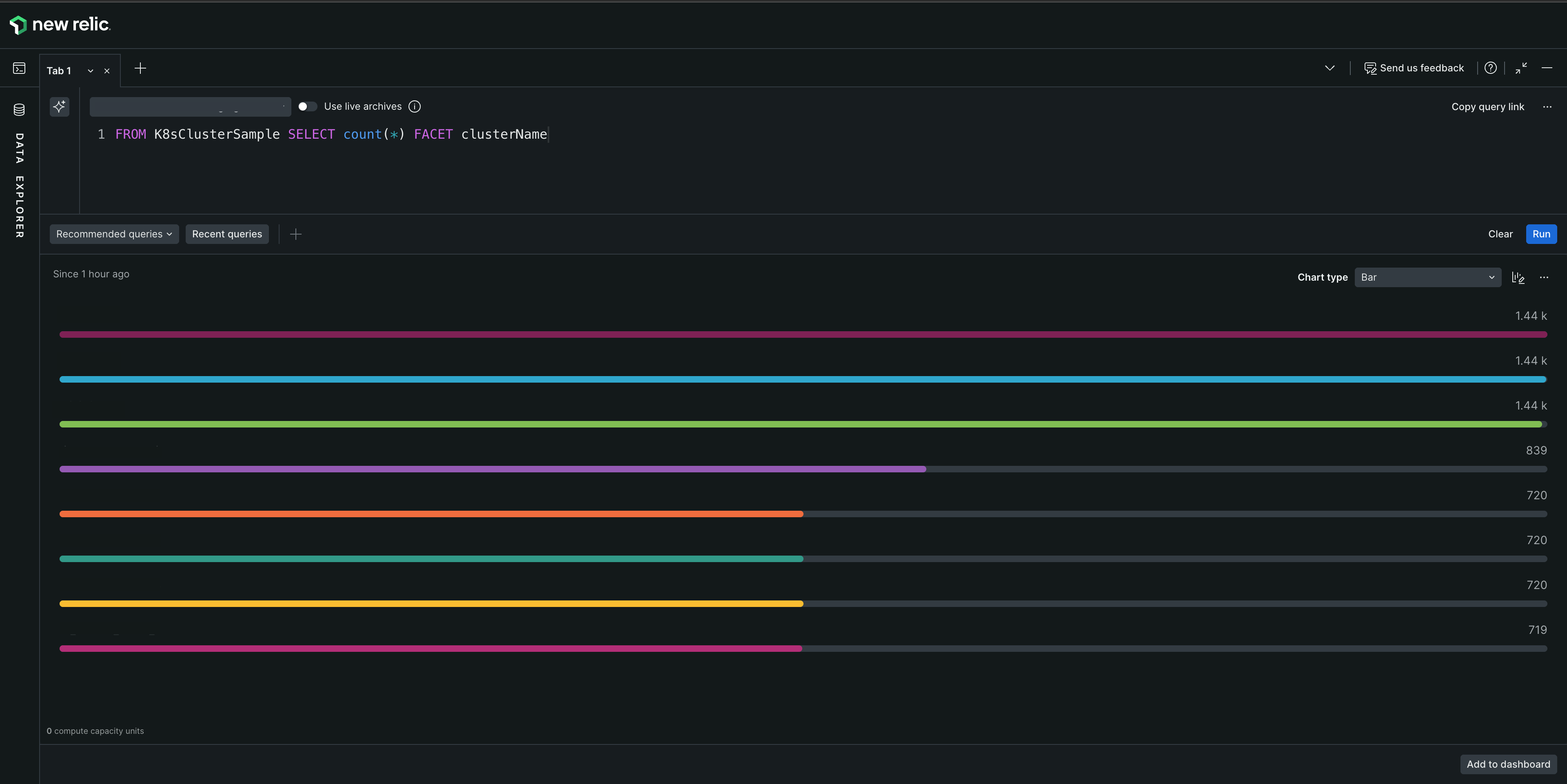
When you run your query in NRQL mode or view your chart while using metrics and events to specify data, New Relic analyzes your data and applies a chart type that fits your data.
There are several options of chart types to choose from. To change the chart type, use the Chart type menu to the right of the current chart.
While we try our best to optimize how we display your data, sometimes you may have other needs. Depending on the chart type, there are additional customization options available.
Importante
The system used for representing byte units (such as KB, MB, GB, TB, etc.) in these charts follows the metric representation. This means that:
1 KB (kilobyte) = 1,000 bytes
1 MB (megabyte) = 1,000 KB
1 GB (gigabyte) = 1,000 MB
1 TB (terabyte) = 1,000 GB
This metric system is in line with the International System of Units (SI), which uses powers of 10 for calculations and representation.
Read the sections below to learn more about the customization features. You can also see this blog and companion video to get a guided walkthrough for a few of the customization options.
To access chart customization options:
On the widget you want to customize, from the menu, select Edit.
In the Customize this visualization panel, configure the options described in the sections below.
You can add links and descriptions to your dashboard widgets to provide additional context and navigation options.
Widget links appear as clickable links on widget titles, allowing users to navigate to related dashboards, documentation, or external resources. When users view the dashboard, clicking the widget title opens the configured link.
Widget descriptions provide additional context about what a widget displays, shown as a tooltip when users point to the widget.
To add a link or description:
To add a link, in the URL field, enter a URL. Note the following requirements:
Maximum length: 2,048 characters
Supported protocols: http:// and https:// only
Invalid URLs will display a validation error.
To add a description, in the Description field, enter a plain text description.
Click Apply changes.
To remove a link or description:
Clear the URL or Description field.
Click Apply changes.
To add, edit, or remove widget links and descriptions via JSON:
From the dashboard menu, select Manage JSON.
In the JSON editor, locate the widget you want to modify and update the link and description fields. To add or edit, enter a value. To remove, set the field to null:
widgets:[{
id:"WIDGET_ID"
link:"https://example.com"// Enter URL or null to remove
description:"Your widget description"// Enter text or null to remove
}]
Click Save changes.
If you encounter issues with widget links not working as expected, see Widget link issues for troubleshooting help.
Customize the date and time format for tables and billboards from the Data format section. You have the flexibility to leave it as is or modify the format to suit your needs. Choose from the following options:
Numeric: Retains the timestamp as numeric values.
Date: Displays dates in a standard format.
Duration: Shows the time span between the timestamp and the present moment.
Time to Now: Indicates the time elapsed since the timestamp.
Select the most suitable format to configure data presentation based on your needs.
To display data within certain values on line charts and area charts, in the Y-axis section, set a minimum and maximum value for the axis.
If no customization option is selected, dashboards automatically displays the full Y axis from 0 to the top value plus a margin.
To disable or enable the legend for line charts, area charts, and histograms, in the Legend section, use the Visibility toggle.
If the number of facets on a query is larger than 5,000 for bar charts, pie charts, or tables, the Other groups facet aggregates the rest of the facets. To show or hide the Other groups option, in the Other groups section, use the Visible toggle.
You can customize the color of your charts per series in area, bar, line, pie, and stacked bar charts.
To customize the color per series, in the Colors section, select the icon, choose the series you want to change, and select the desired color.
You can customize the unit on your Y axis and in each of your series. It is available in area, line, and stacked bar charts.
To customize the unit, in the Units section, select the icon, choose the series that needs another unit, and select the unit.
Time series charts sometimes look broken when there is a zero in the event attribute being queried. However, a null value may not always represent the situation correctly.
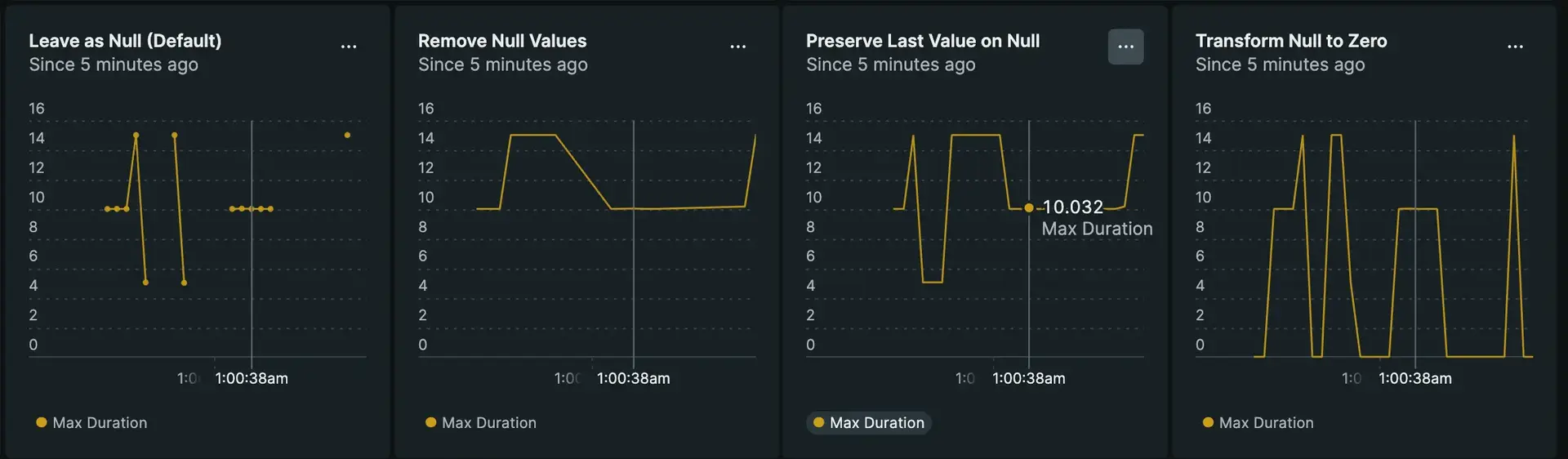
You can choose an option for displaying null values to make your time series charts easier to understand. They include:
Leave as null (default): Null values show as gaps in the chart, which can result in disconnected lines. You may want to use this option if it's important to find gaps in reporting, or when it doesn't make sense to connect a continuous line.
Remove the value: Null points won't exist in the chart. For example, a chart that displays a data point per hour in a day would show fewer than 24 points.
Preserve the last value: Null values will keep the value from the previous period. For example, if a chart reports cumulative sales each hour, but is missing an hour's data, the missing hour would reflect the same number of sales as the previous hour.
Transform the value to zero: The missing data shows up as a zero. This option could be useful when no data means there is no meaningful transaction, count, or usage.
You can choose from four ways to display null values in your charts.
To customize how your null values appear, in the Null values section, select the option to apply. To use different options for each series, select the icon beside Null values per series to configure them.
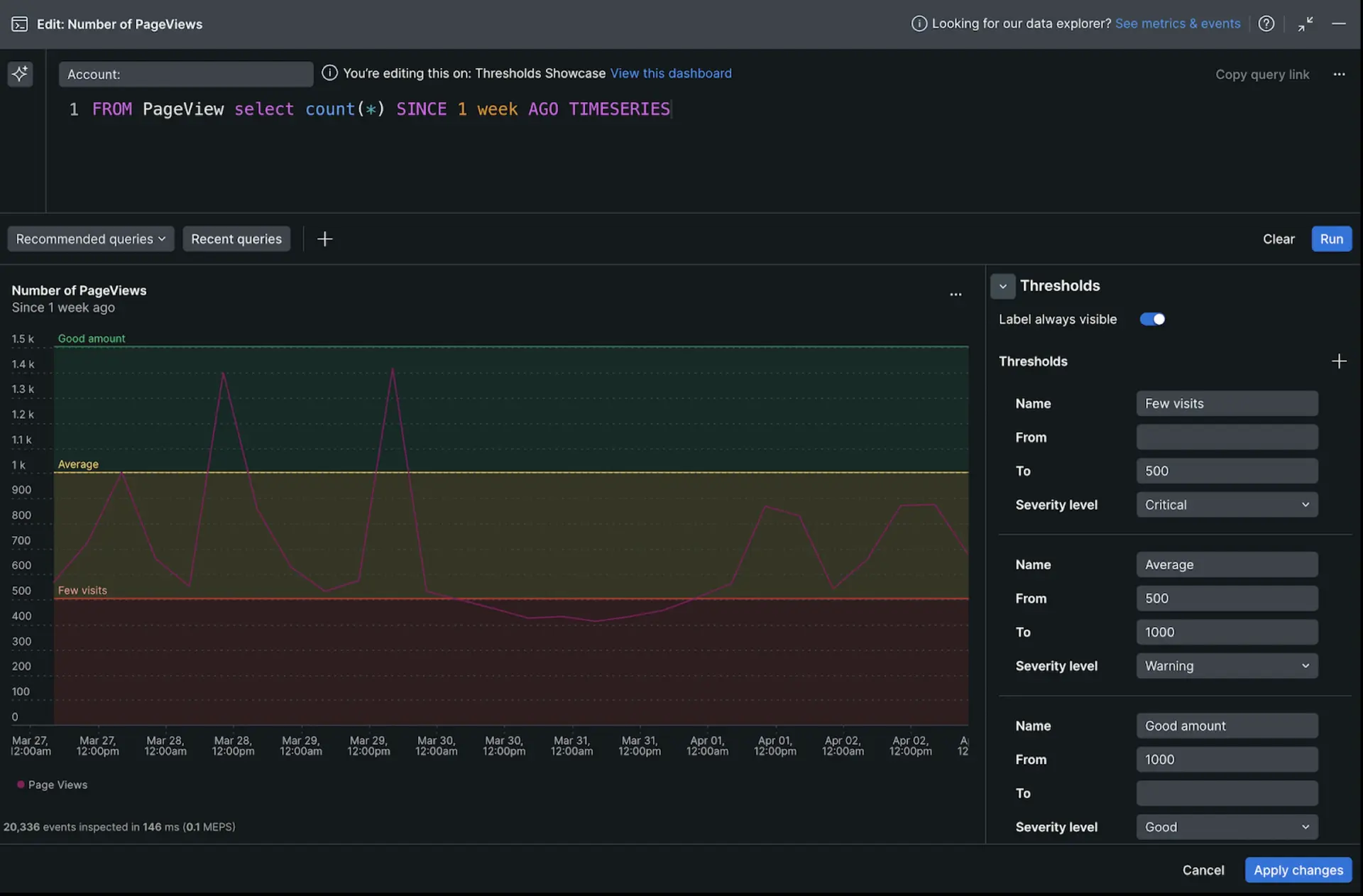
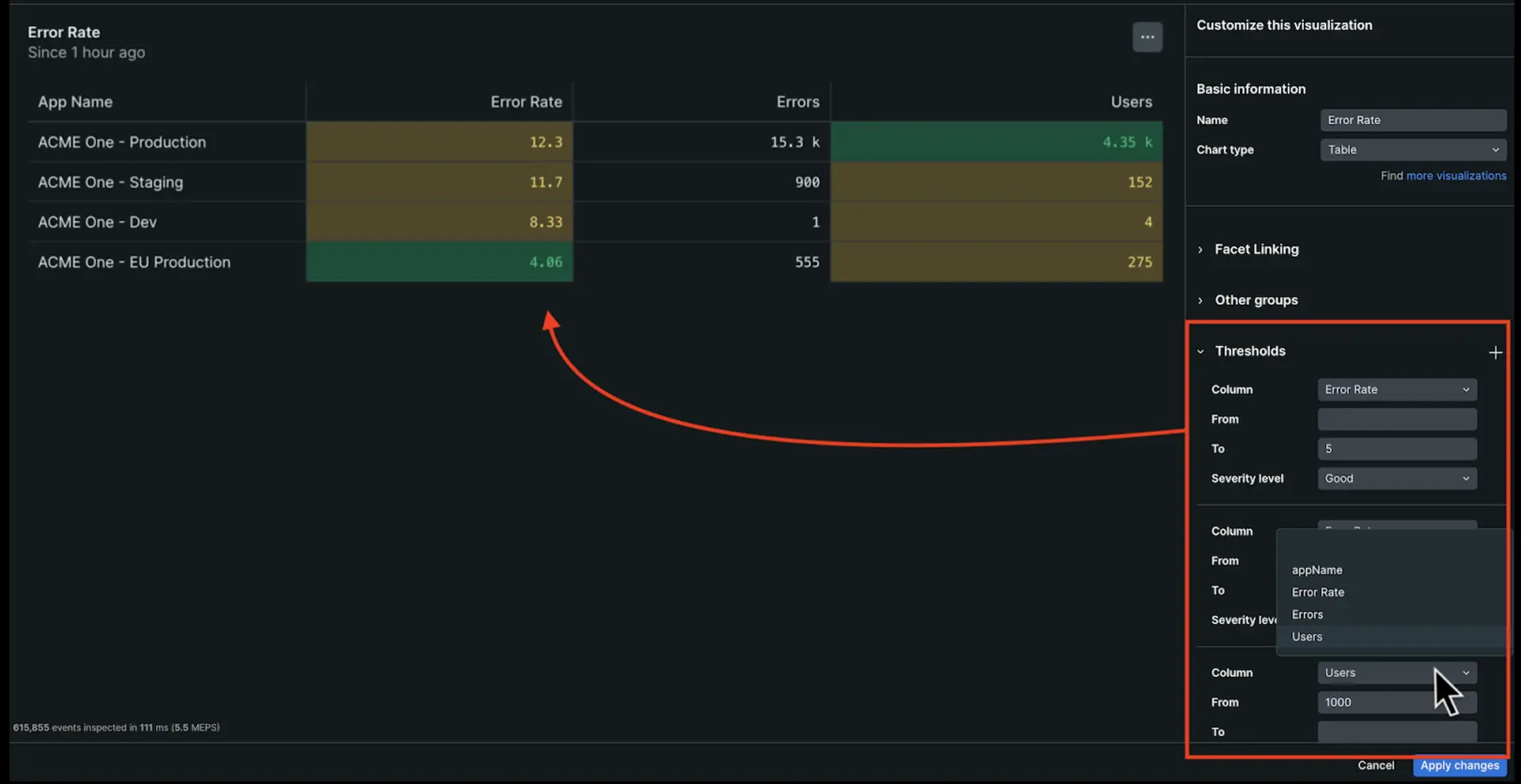
Thresholds are visual cues that add context to your charts and tables, making data interpretation clearer. Here's how they can elevate your visualizations:
Boundary lines: Establish minimum and maximum acceptable values in time series charts.
Colored regions: Shade areas between thresholds to visually identify normal operating ranges or highlight critical zones.
Conditional cell coloring: Apply color codes to table cells based on their values, instantly revealing data outliers or trends.
In time series charts:
Edit the chart and expand the Thresholds menu.
Select + to add a threshold and enter a Name.
Enter values for From and To. If you want to create a single line, enter the same number for both fields.
Select a severity level. This determines the color of the line or region.
In tables:
Edit the chart and expand the Thresholds menu.
Select + to add a threshold and select a Column.
Enter values for From and To. To set an upper bound, leave the From field empty. To set a lower bound, leave the To field empty.
We're still working on this feature, but we'd love for you to try it out!
This feature is currently provided as part of a preview program pursuant to our pre-release policies.
If you are enrolled in NRQL Predictions, you can create predictions on line and area charts to project future trends based on historical data.
Use open-source charting library
You can use Nerdpacks to create your own custom visualizations. We've also teamed up with Formidable so you can use an open-source charting library, and quickly add unique "victory charts" to your dashboards. To learn about these custom visualization Nerdpacks, watch this short video (approx. 4 minutes).